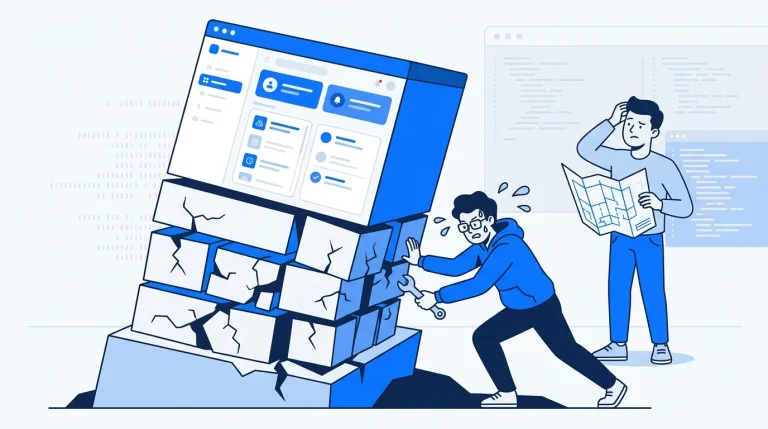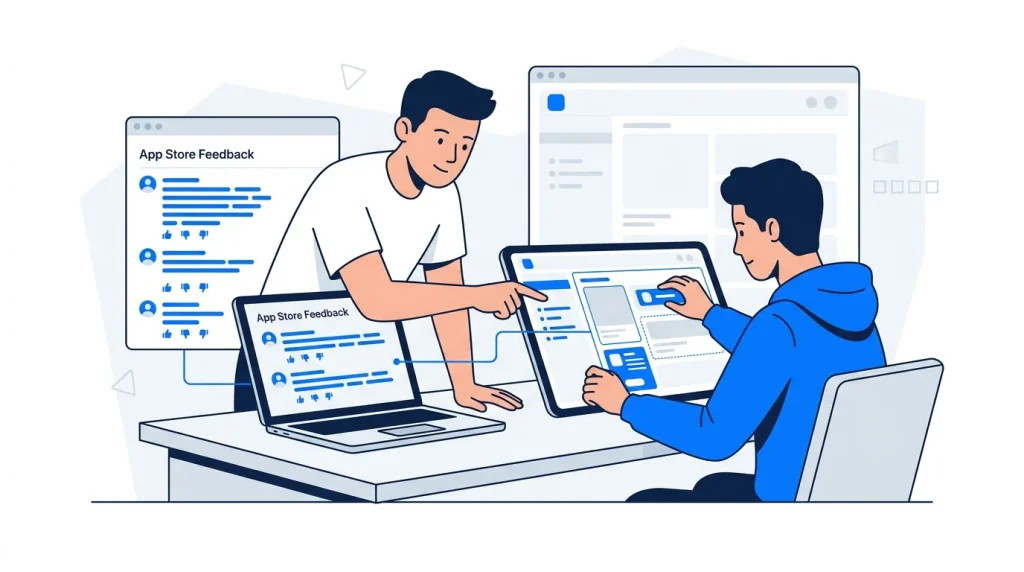
You’ve just spent months designing, coding, and perfecting your Flutter app. You finally archive the build, upload it to the developer console, and hit that glorious “Submit for Review” button. Then, the agonizing waiting game begins. But a day or two later, your inbox pings with a dreaded message from Apple: App Rejected.
If you’ve ever launched a mobile app, you know the sinking feeling of an App Store rejection. While Google Play deployment certainly has its own hurdles like strict policy declarations and rigorous internal testing requirements Apple’s App Store review process remains notoriously rigid. Apple reviewers are highly trained to spot anything that compromises the user experience, from tiny UI misalignments to vague privacy policies.
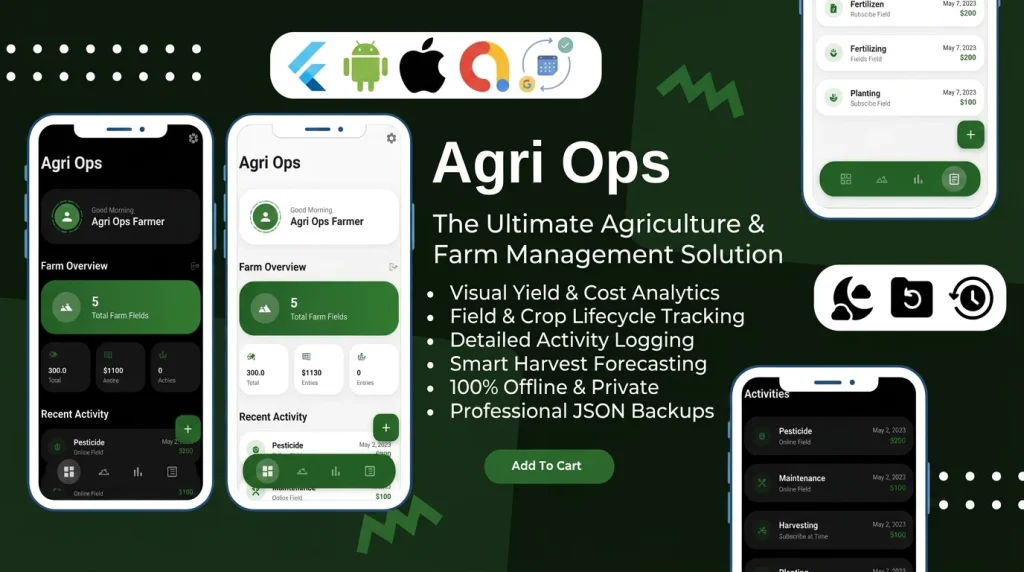
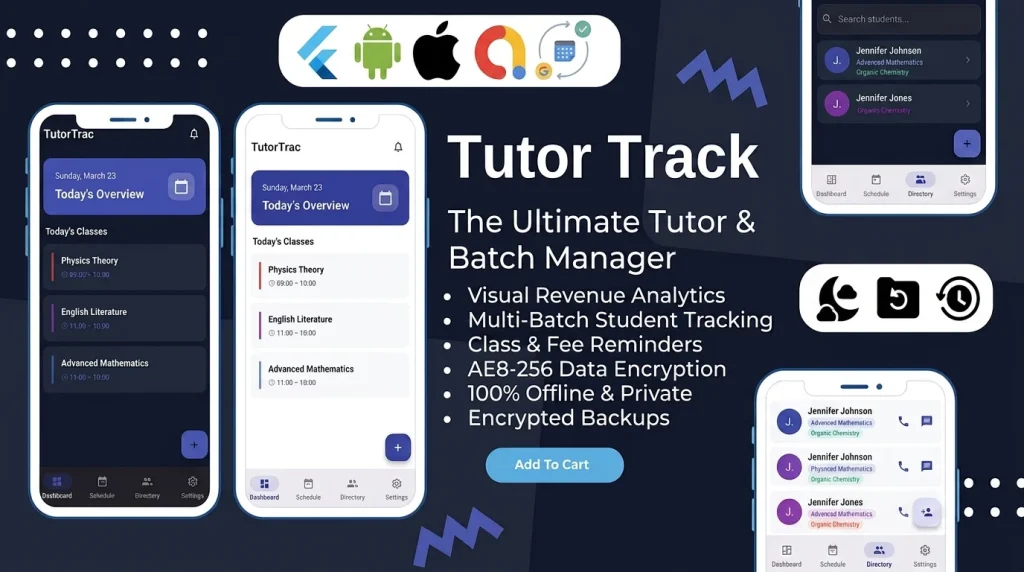
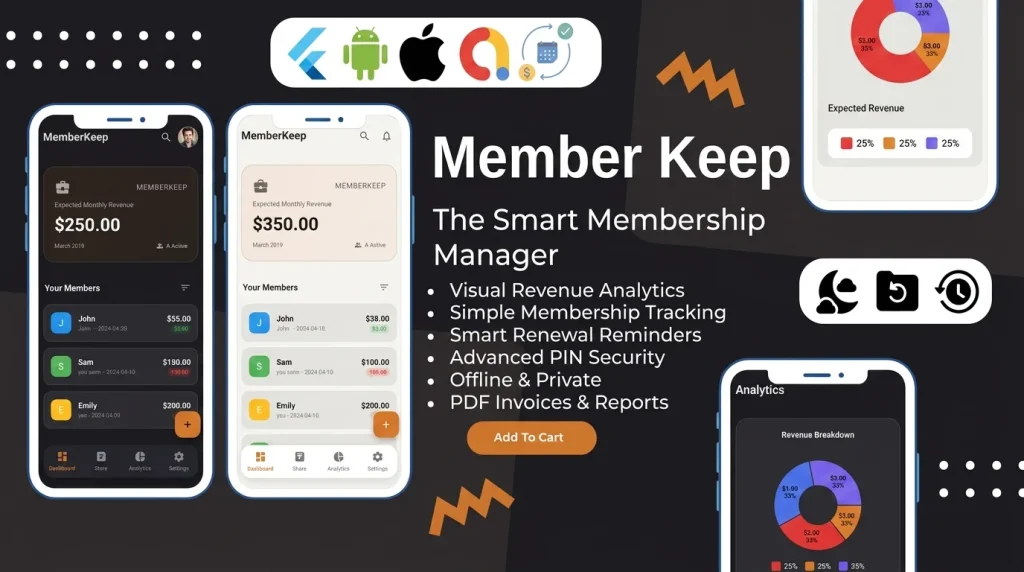
At Stacklyn Labs, we specialize in engineering premium, high-performance Flutter app templates, scalable web solutions, and business-ready SaaS source code. We’ve guided countless developers, agency owners, and entrepreneurs through this exact gauntlet, helping them turn rejection emails into “Ready for Sale” statuses.
Let’s break down exactly why Apple rejects apps, how to seamlessly satisfy their rigorous Human Interface Guidelines (HIG), and how utilizing premium, meticulously designed UI templates can save you weeks of frustration.
Why Apple’s Human Interface Guidelines (HIG) Are Non-Negotiable
When it comes to the App Store, “good enough” simply isn’t good enough. Apple is entirely obsessed with the end-user experience. They want every single app on their platform to feel intuitive, highly polished, and secure. Their Human Interface Guidelines aren’t just polite suggestions or best practices; they are the literal rulebook your app is judged against.
For Flutter developers, this is where things can get a little tricky. Because Flutter allows you to build for both iOS and Android from a single unified codebase, it’s remarkably easy to accidentally design an app that feels a little too Android on an iPhone. Apple reviewers will dock you for this. They look for native-feeling navigation, appropriate touch targets, readable typography, and logical content hierarchies.
For instance, Apple requires interactive elements to have a minimum touch target area of 44×44 points. If your buttons are too small or crammed together, you’ll face a swift rejection. Additionally, they look for proper implementation of iOS-specific paradigms, like swipe-to-go-back gestures and proper bottom tab navigation. If your app feels like a clunky web wrapper or a straight, unoptimized port of an Android layout, expect a rejection under the dreaded “Design – Spam or Minimum Functionality” clause.
Top Reasons for App Store Rejections (and How to Fix Them)
So, what usually trips up developers right at the finish line? Here are the most common pitfalls we see in modern app publishing, and exactly how to steer clear of them.
1. Subpar UI/UX and Cluttered Interfaces
Apple hates bad design. If your app has broken layouts on different screen sizes, overlapping text, or navigation that forces users into dead ends without a clear way back, you will be rejected.
The Fix: Test your UI across multiple screen sizes from the small iPhone SE to the massive Pro Max models, and don’t forget iPad scalability if you support it. Ensure your core features are never more than a few taps away, and fully support system-wide features like Dark Mode.
2. Privacy and Permission Mishandling (The Info.plist Trap)
This is easily the number one reason Flutter apps fail their initial review. Apple demands absolute transparency regarding user data. If your app asks for camera, location, microphone, or photo library access without clearly explaining why it needs it, your submission is dead on arrival.
The Fix: Because Flutter plugins (like image_picker or geolocator) often include underlying native permission requests by default, you must declare them in your iOS Info.plist file. Always include descriptive keys like NSCameraUsageDescription and explicitly tell the user how the app uses that hardware (e.g., “We need camera access so you can scan your credit card securely”).
3. Crashes, Bugs, and Performance Hiccups
Apple has a zero-tolerance policy for apps that crash on launch or freeze during basic tasks. Reviewers test apps on actual physical devices, not just perfectly running Xcode simulators.
The Fix: Never submit a debug build. Thoroughly test your production build using TestFlight on physical iPhones. Keep an eye on memory leaks, ensure your app handles background states gracefully, and double-check your third-party SDKs outdated plugins are a massive source of silent crashes.
4. Incomplete Metadata and Misleading Screenshots
Your App Store listing is just as important as the code itself. If your screenshots show a feature that doesn’t actually exist in the app yet, or if your description promises functionality that is labeled “coming soon,” Apple will flag it. Furthermore, the App Store Review guidelines strictly forbid keyword stuffing in titles and subtitles.
The Fix: Only showcase current, working features in your app store screenshots. Make sure your support URLs actually link to a real, working contact page, and ensure your App Privacy labels match your code’s real behavior perfectly.
5. Ignoring the “Sign in with Apple” Mandate
If your application uses third-party social login services (like Google, Facebook, or X), Apple enforces a strict rule: you must also offer “Sign in with Apple” as an equivalent, top-tier option. Leaving this out will guarantee a rejection.
The Ultimate Hack: Start with Premium UI Templates
Here is a hard truth about the mobile development industry: designing a truly premium, App Store-ready interface from scratch is incredibly time-consuming and expensive. If you aren’t an expert in UI/UX design, you are essentially gambling with your app launch and risking getting stuck in an endless loop of rejections and revisions.
This is exactly why smart developers, solo founders, and agency owners choose to utilize premium, meticulously designed UI templates. By building on top of a proven, expertly crafted foundation, you completely bypass the UI/UX rejection trap.
At Stacklyn Labs, our Flutter app templates are engineered specifically to pass these strict guidelines straight out of the box. From clean, scalable code architecture to pixel-perfect, HIG-compliant designs, our source code is built to reduce your development timeline from months to just days. You don’t have to second-guess if your touch targets are large enough, if your navigation is intuitive, or if your state management will cause a memory leak we’ve already handled the heavy lifting for you. We provide ready-to-publish solutions that look stunning and perform flawlessly.
Your Practical Pre-Launch Checklist for Flutter Apps
Before you even think about hitting that submit button for your next iOS or Google Play deployment, run your application through this rapid pre-launch checklist to ensure a smooth review process:
- Sync Your Versioning: In Flutter, always update your version and build numbers directly in your
pubspec.yamlfile, not manually in Xcode. Mismatched versioning is a common error that causes instant upload failures. - Audit Your Info.plist: Double-check that every single permission your app (or any third-party SDK) might request has a clear, user-facing explanation. Don’t be vague; state exactly what the data is used for.
- Remove Alpha Channels from Icons: Apple requires App Store icons to be fully opaque. A transparent background (an alpha channel) will cause an automatic build rejection before a human reviewer even sees it.
- Test on Physical Devices via TestFlight: Simulators are great for development, but they won’t catch everything. Deploy your build to TestFlight and have real users test your app’s performance, navigation, and network requests on physical devices.
- Implement App Tracking Transparency (ATT): If your app collects user data and shares it with third parties for tracking purposes, you must implement the ATT framework to explicitly ask for the user’s permission.
- Check Your API Endpoints: Ensure all backend APIs your app relies on are fully operational and accessible. If a reviewer opens the app and is greeted by a blank screen or a server timeout error, they will reject it immediately.
Wrapping Up
Publishing an app shouldn’t be a nerve-wracking nightmare. While Apple’s review process can feel like navigating a minefield, their strict guidelines ultimately create a safer, higher-quality ecosystem for users which translates to higher conversion rates for your business. By respecting the Human Interface Guidelines, handling permissions transparently, and rigorously testing your app, you’ll sail through the review process with ease.
If you want to skip the frustrating trial-and-error phase entirely, we’ve got your back. Check out Stacklyn Labs to browse our premium marketplace of high-performance Flutter app templates, B2B SaaS source code, and comprehensive web solutions. Prefer a hands-off approach? You can hire our expert studio for custom development, professional reskinning, and end-to-end App Store and Google Play deployment. We’ll build it, launch it, and get it approved so you can focus entirely on growing your business.
References & Further Reading
- Apple Developer: App Store Review Guidelines The official, comprehensive rulebook detailing all legal, safety, performance, and design requirements for getting an app approved on the App Store.
- Apple Developer: Human Interface Guidelines (HIG) Apple’s foundational design system and principles for creating intuitive, native-feeling user experiences across all Apple platforms.
- Google Play Help: Developer Policy Center The central hub outlining Google Play’s policies regarding restricted content, user privacy, store listing standards, and app functionality.
- Shobhakar Tiwari (Medium): App Store Rejection Diaries: An iOS Developer’s Experience A practical, developer-driven look at common App Store rejection reasons, including metadata mistakes, permission traps, and crash issues.
- Appcircle Blog: App Store Review Tips: How to Get Along Well with Apple and Avoid App Rejections A guide covering best practices for testing, preparing metadata, and aligning your app’s UI with Apple’s guidelines prior to submission.
Stacklyn Labs
Developer Notes & Updates